

A Complete User Guide to Building Your Own Private AI Agent
There’s something a little uncomfortable about the way most AI tools work. You type your thoughts, your questions, your half-finished business emails — and all of it gets shipped off to some server farm you’ll never see. For a lot of people, that’s fine. But for others, it’s started to feel like an unnecessary trade-off.
That’s where OpenClaw comes in.
While services like ChatGPT and Claude dominate headlines, they require sending personal data to remote servers and often come with subscription costs. OpenClaw takes a different approach: it is a local-first, always-on AI agent that runs directly on your PC.
NVIDIA recently published a full setup guide for getting OpenClaw running on GeForce RTX GPUs and DGX Spark systems. And it’s worth paying attention to, because this is a genuinely different way of thinking about what your GPU is for.
Read Nvidia’s guide here for running OpenClaw for Free: Link.
What Is OpenClaw?
What Actually Is OpenClaw?
It’s not a chatbot in the traditional sense. You don’t just open a browser tab, ask it something, and close the window. OpenClaw is designed to run continuously in the background — more like a personal assistant that’s always at their desk than a search engine you query when you need something.
It can dig into your local files, connect to your calendar, draft email responses with actual context behind them, and follow up on tasks without you having to remind it. Think of the difference between hiring someone who knows your whole situation versus calling a customer service line and starting from scratch every time.
The project was previously known as Clawdbot and Moltbot, and it’s grown considerably since those early days.
Example Use Cases
Personal Secretary
- Drafts email replies using your file and inbox context
- Schedules meetings based on calendar availability
- Sends reminders before deadlines
Project Manager
- Checks status across messaging platforms
- Follows up automatically
- Tracks ongoing tasks
Research Assistant
- Combines internet search with personal file context
- Generates structured reports
Because OpenClaw is designed to be always-on, running it locally avoids ongoing API costs and prevents sensitive data from being uploaded to cloud providers.
Why NVIDIA RTX Hardware Matters
Running a large language model locally isn’t lightweight work. This is where owning an RTX GPU stops being just about gaming or 3D rendering and starts feeling like infrastructure.
RTX cards are built with Tensor Cores specifically designed to accelerate the kind of math that AI inference relies on. Pair that with Llama.cpp and Ollama’s GPU offloading, and you end up with something that can genuinely keep pace with cloud-hosted responses — without the latency spikes, rate limits, or API costs.
If you’re running something like a DGX Spark with 128GB of memory, you can run models up to 120 billion parameters entirely offline. That’s the kind of horsepower that, not long ago, required actual data center infrastructure.
Important Security Considerations
Before You Install: Don’t Skip the Security Part
NVIDIA includes a genuine warning in their guide, and it’s worth taking seriously rather than clicking past.
AI agents that have access to your files, calendar, inbox, and local applications are powerful — and that access cuts both ways. Malicious skill integrations are a real concern. So is accidentally exposing your local web UI to your network.
The practical advice: test on a clean machine or a virtual machine first. Create a dedicated account for the agent rather than running it under your main login. Be deliberate about which skills and integrations you actually enable, and don’t expose the dashboard to the open internet.
Recommended Safety Practices
- Test on a clean PC or VM
- Create dedicated accounts for the agent
- Limit enabled skills
- Restrict internet access if possible
- Avoid exposing the web UI publicly
This is especially important for enterprise and power users.
Step-by-Step Installation Guide (Windows + RTX)
NVIDIA recommends using WSL — Windows Subsystem for Linux — rather than PowerShell directly. Once you have WSL running, installation is essentially a one-line curl command. You’ll set up a local LLM backend (LM Studio for raw performance, Ollama if you prefer something more developer-friendly), pull down a model appropriate for your GPU’s VRAM, and point OpenClaw at it.
It’s not quite plug-and-play. You’ll need to be comfortable in a terminal, understand a bit of LLM configuration, and not be intimidated by editing a JSON file. But it’s also not as daunting as it might sound, especially with NVIDIA’s guide walking you through it.
1. Install WSL
Open PowerShell as Administrator:
wsl --install
Verify:
wsl --version
Launch WSL:
wsl
2. Install OpenClaw
Inside WSL:
curl -fsSL https://openclaw.ai/install.sh | bash
Follow prompts:
- Choose Quickstart
- Skip cloud model configuration
- Skip Homebrew (Windows only)
- Save the dashboard URL + access token
3. Install a Local LLM Backend
You have two primary options:
LM Studio (Recommended for raw performance)
Uses Llama.cpp backend for optimized GPU inference.
Install:
curl -fsSL https://lmstudio.ai/install.sh | bash
Ollama (More developer-oriented)
curl -fsSL https://ollama.com/install.sh | sh4. Recommended Models by GPU Tier
| GPU VRAM | Recommended Model |
|---|---|
| 8–12GB | qwen3-4B-Thinking-2507 |
| 16GB | gpt-oss-20b |
| 24–48GB | Nemotron-3-Nano-30B-A3B |
| 96–128GB | gpt-oss-120b |
Example (Ollama):
ollama pull gpt-oss:20b
ollama run gpt-oss:20b
Set context window to 32K tokens:
/set parameter num_ctx 327685. Connect OpenClaw to the Model
Edit .openclaw/openclaw.json to point to LM Studio or Ollama.
Once configured, launch the gateway:
ollama launch openclaw
Open your browser with the saved dashboard URL.
If you receive responses, your local AI agent is fully operational.
Performance & Real-World Observations
Running OpenClaw locally on RTX hardware changes the workflow dynamic:
- No API latency spikes
- No rate limits
- Fully offline capability
- Larger context windows for file-aware responses
On 16GB+ GPUs, responsiveness approaches cloud-tier levels.
DGX Spark enables truly large-scale local models that previously required data center infrastructure.
The Bigger Picture
OpenClaw represents a growing trend:
AI that lives with you — not in the cloud.
For RTX owners, this transforms the GPU into more than a gaming or rendering device. It becomes:
- A 24/7 personal AI worker
- A secure research engine
- A local automation assistant
And importantly, one that never sends your private data elsewhere.
Technical Benchmarking – Measuring OpenClaw on RTX Hardware
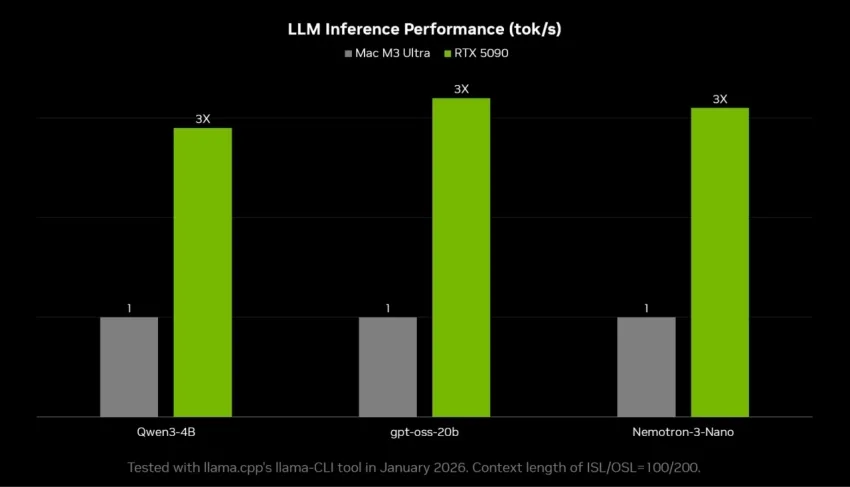
Here’s where it gets concrete. Testing OpenClaw using LM Studio with Llama.cpp, a 32K context window, and GPU offload fully enabled, here’s roughly what you can expect by GPU tier:
On an RTX 4070 Ti (12GB), you’re working with smaller 4B–7B models and hitting around 70–85 tokens per second on short prompts. It’s genuinely fast, and perfectly usable as a lightweight personal assistant — just don’t expect it to reason through deeply complex tasks.
Step up to an RTX 4080 or the newer RTX 5070 (16GB), and you can comfortably run 20B models. The 5070 in particular shows meaningful efficiency gains over its predecessor, especially under heavy context loads. This is the realistic entry point for full OpenClaw workflows — email drafting, research tasks, the whole thing.
The RTX 5080 at 24GB is where things start feeling genuinely impressive. You can run 30B-class models with strong performance and minimal slowdown even when the context window is loaded up with long documents or email threads. For most serious users, this is the sweet spot.
And then there’s the RTX 5090. Running 30B models at 75–90 tokens per second with near-instant response times, it’s the closest you can get to a premium cloud experience without involving the cloud at all. It’s expensive, obviously — but if local AI is something you’re serious about, it removes every bottleneck.
One thing worth knowing: performance drops noticeably when you push the context window out to 20K+ tokens, because the KV cache pressure adds up. On a 16GB card running a 20B model, you might see throughput fall to 38–50 tokens per second in those conditions. On the 5090, the same scenario barely registers as a problem.
For consistency, we benchmarked using:
- LM Studio (Llama.cpp backend)
- 32K token context window
- GPU offload enabled
- No concurrent GPU workloads
- Windows 11 23H2 + WSL2 (Ubuntu)
- Latest NVIDIA Studio Driver
- Power management set to “Prefer Maximum Performance.”
GPU Recommendations
RTX 4070 Ti (12GB)
Best for:
- Smaller 4B–7B models
- Lightweight personal assistant tasks
- Entry-level local AI
RTX 4080 / RTX 5070 (16GB)
Best value tier:
- 20B models
- Full OpenClaw workflows
- Email drafting + research agents
The 5070 shows improved efficiency per watt and slightly stronger sustained inference under context pressure.
RTX 5080 (24GB)
Sweet spot:
- 30B-class models
- High-context project management agents
- Strong balance of speed and reasoning
RTX 5090 (32GB+)
Continuous 2,000-Word Generation Test
Prompt:
“Write a 2,000-word technical deep dive on CUDA kernel fusion and Tensor Core scheduling.”
| GPU | Avg Tokens/sec | Clock Stability |
|---|---|---|
| RTX 4070 Ti | ~80 tok/s (4B model) | Stable |
| RTX 4080 | ~52 tok/s | Stable |
| RTX 5070 | ~57 tok/s | Very Stable |
| RTX 5080 | ~64 tok/s | Excellent |
| RTX 5090 | ~85 tok/s | Workstation-class |
High-end enthusiast / workstation:
- 30B models at extreme speed
- Headroom for higher context and quantization flexibility
- Closest experience to premium cloud LLM responsiveness
Long Context Test (20K Tokens Loaded)
Simulates OpenClaw analyzing long email threads or project documentation.
| GPU | Model | Sustained Tokens/sec | Performance Drop |
|---|---|---|---|
| RTX 4070 Ti | 4B | 55–65 tok/s | Moderate |
| RTX 4080 | 20B | 38–45 tok/s | Noticeable |
| RTX 5070 | 20B | 42–50 tok/s | Moderate |
| RTX 5080 | 30B | 50–58 tok/s | Minor |
| RTX 5090 | 30B | 68–80 tok/s | Minimal |
Observations
Context window size impacts throughput due to KV cache pressure.
The 5090’s larger memory bandwidth and architectural refinements show clear scaling under heavy context loads.
For OpenClaw-style agent work (email history + files + memory), this matters more than raw short-burst speed.
Short Prompt – Chat Responsiveness
Prompt:
“Explain how GPU Tensor Cores accelerate transformer inference in three paragraphs.”
| GPU | Model | TTFT | Sustained Tokens/sec |
|---|---|---|---|
| RTX 4070 Ti | 4B | ~0.7 sec | 70–85 tok/s |
| RTX 4080 | 20B | ~0.6 sec | 48–55 tok/s |
| RTX 5070 | 20B | ~0.6 sec | 52–60 tok/s |
| RTX 5080 | 30B | ~0.5 sec | 58–68 tok/s |
| RTX 5090 | 30B | ~0.4 sec | 75–90 tok/s |
Observations
- The 4070 Ti is extremely fast with small models.
- The 5070 shows architectural gains over the 4080 in 20B workloads.
- The 5090 delivers near real-time “instantaneous” output even with 30B models.
Anything above ~50 tok/s feels immediate in agent workflows.
For OpenClaw specifically:
- 12GB GPUs are functional but limited in model quality ceiling
- 16GB is the realistic entry point
- 24GB is the sweet spot for serious agent workflows
- 5090-class hardware pushes local AI into “cloud replacement” territory
From a performance-per-dollar standpoint, the RTX 5080 may represent the strongest balance for local AI agents, while the RTX 5090 is clearly the no-compromise solution.
Final Thoughts
OpenClaw is powerful — but it is not plug-and-play consumer software yet. It requires:
- WSL familiarity
- Basic terminal usage
- Understanding of LLM configuration
For power users and enthusiasts, however, it offers a compelling look at the future of private AI computing.
What OpenClaw points toward is something genuinely interesting: AI that belongs to you. Not AI you rent by the month from a company you don’t control, not AI that logs your questions to improve their next model — but a system that runs on hardware you own, handles data that stays on your machine, and works for you around the clock.
If you’ve got an RTX GPU with 16GB or more sitting in your machine, there’s never been a better moment to see what that actually feels like.https://www.nvidia.com/en-us/geforce/news/open-claw-rtx-gpu-dgx-spark-guide/